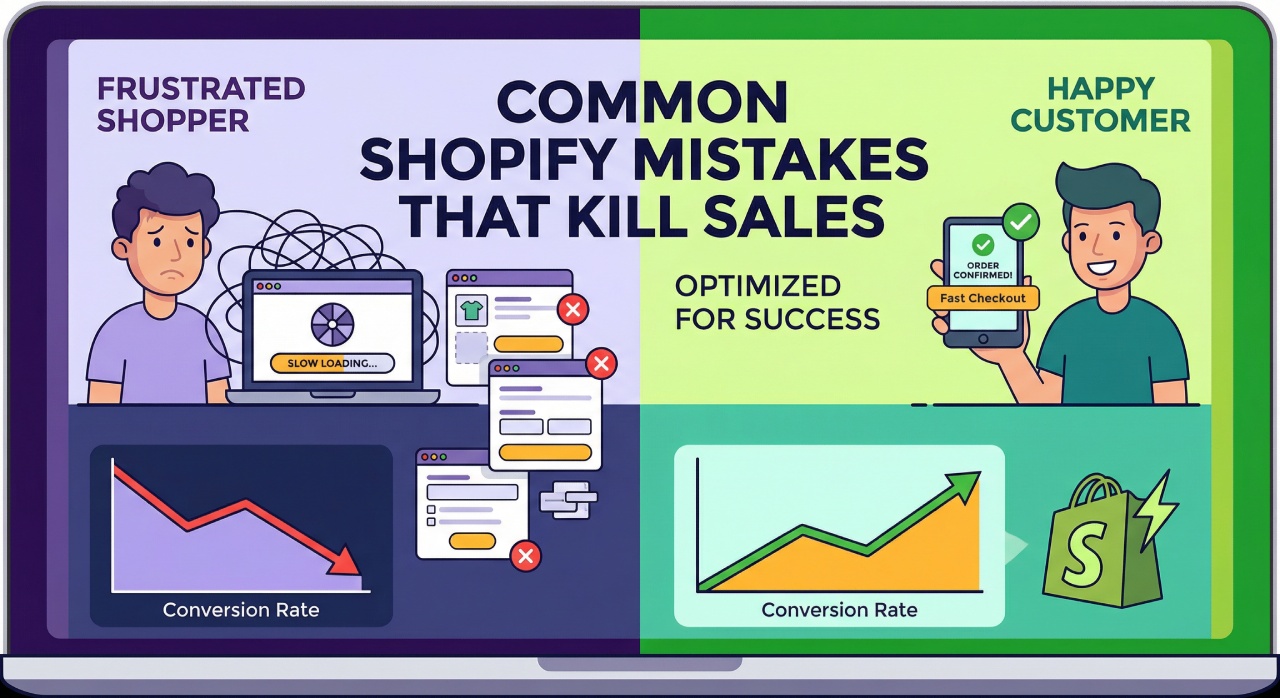
⚠️ Revenue Warning: Research shows that 78% of Shopify stores unknowingly make critical mistakes that reduce their conversion rates by 40% or more. The devastating part? Most of these issues can be fixed in under 24 hours with the right knowledge.
Running a Shopify store should be exciting, but if you’re watching visitors come and go without making purchases, you’re not alone. Many store owners struggle with the same frustrating problem: traffic that doesn’t convert into sales.
Here’s the good news: the most common Shopify problems and solutions are surprisingly straightforward once you know what to look for. A store converting at just 1% that improves to 2% has literally doubled its revenue without spending an extra dollar on traffic. When you fix multiple Shopify store issues at once, the improvements multiply rather than just add up.
Let’s say your store receives 10,000 monthly visitors. At a 1.5% conversion rate with a $75 average order value, you’re making $11,250 per month. After fixing these common mistakes, a 3.5% conversion rate would generate $26,250 monthly, that’s an extra $15,000 in revenue from the same traffic.
In this comprehensive guide, we’ll walk through the most damaging Shopify mistakes that are costing you sales right now, and show you exactly how to fix them today.
1. Slow Page Speed That Drives Customers Away

Page speed is one of the biggest conversion killers for Shopify stores, yet it’s often overlooked. Your customers won’t wait for slow pages to load. Research shows that bounce rates nearly triple when load times exceed three seconds, and a one-second delay can reduce conversions by up to 20%.
The Numbers Don’t Lie: According to recent studies, websites that load in under 2 seconds have conversion rates 2.5 times higher than those taking 5 seconds. Additionally, 53% of mobile users abandon sites that take longer than 3 seconds to load.
Why Your Shopify Store is Slow?
Several factors contribute to slow loading times on Shopify stores:
- Unoptimized images: Large, high-resolution images are the number one culprit. Many store owners upload raw images straight from their camera without compression.
- Too many apps: Each app you install adds scripts and code that need to load. Even unused apps can slow down your site if they’re still installed.
- Heavy themes: Some Shopify themes look beautiful but are bloated with unnecessary features and code.
- GIF overuse: Animated GIFs can be extremely large files. Using just two or three GIFs can add 10MB or more to a single page.
- Third-party scripts: Tracking codes, live chat widgets, and social media integrations all add to loading time.
✅ How to Fix Shopify Page Speed Issues
1. Optimize Your Images
- Compress all images before uploading using tools like TinyPNG or Image Compressor.
- Keep images under 200KB when possible.
- Use WebP format for 25-35% smaller file sizes compared to JPEG and PNG.
- Stick to Shopify’s recommended size of 2048×2048 pixels for product images.
- Enable lazy loading so images load only when users scroll to them.
- Replace animated GIFs with static images or optimized video formats.
2. Clean Up Your Apps
- Review all installed apps and remove any you’re not actively using.
- Limit apps to essentials only.
- Use Shopify’s Online Store Speed report to identify which apps are slowing you down.
- Consider consolidating multiple apps into single, more efficient solutions.
3. Choose a Lightweight Theme
- Switch to performance-optimized themes like Dawn, Horizon, Bullet, or Exhibit.
- Testing shows these themes achieve First Contentful Paint as low as 1.1 seconds.
- Avoid themes packed with features you won’t use.
4. Use Speed Optimization Apps
- Consider apps like SpeedBoostr or Thunder Page Speed Optimizer.
- These apps handle image optimization, lazy loading, and code minification automatically.
5. Test Your Speed Regularly
- Use Google PageSpeed Insights to check your score.
- Monitor Core Web Vitals: Largest Contentful Paint (under 2.5 seconds), Cumulative Layout Shift (under 0.1), and Interaction to Next Paint (under 200ms).
- Check Shopify’s Performance Dashboard for real-time insights
2. Poor Mobile Experience Costing You Sales
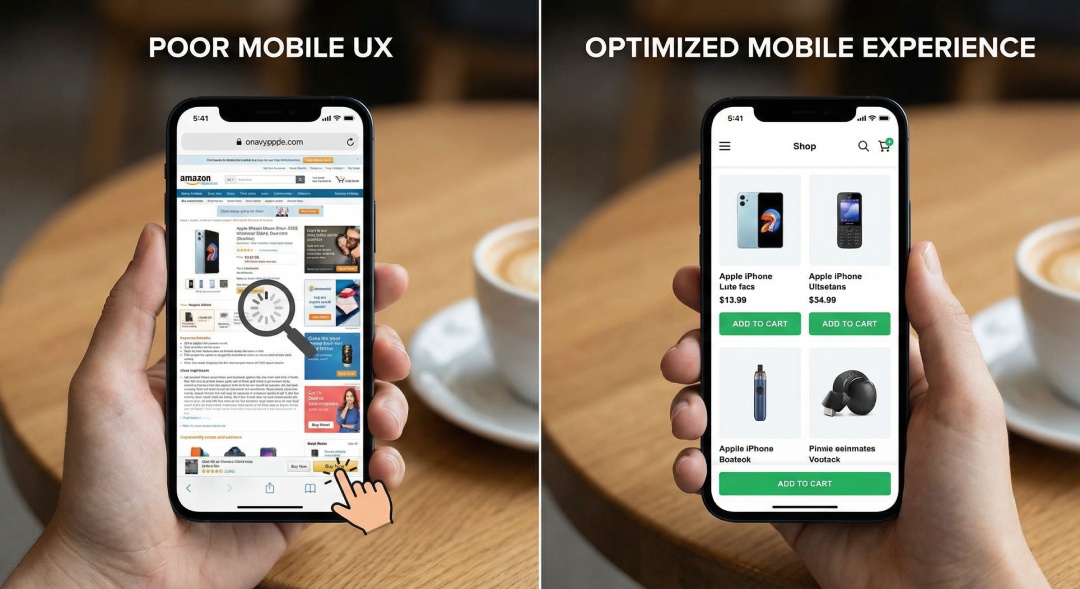
Here’s a wake-up call: more than 81% of traffic to Shopify stores comes from mobile devices, and over half of all ecommerce purchases are now made on mobile. If your store isn’t optimized for mobile, you’re essentially turning away the majority of your potential customers.
Mobile Commerce Reality: Mobile commerce revenue reached approximately $2.5 trillion in 2025. Mobile checkout abandonment sits at 85.7%, compared to desktop’s 73.8%. The gap between these numbers represents massive revenue opportunity for stores that get mobile right.
Common Mobile Shopify Mistakes
- Buttons too small to tap: Fingers are much less precise than mouse cursors.
- Unreadable text: Font sizes below 16 pixels force users to zoom and squint.
- Cluttered layouts: Too much information crammed into small screens
- Complicated navigation: Multi-level menus that are hard to use on mobile.
- Slow mobile load times: Mobile users often have slower connections than desktop users.
- Horizontal scrolling required: Content that doesn’t fit the screen properly
✅ How to Optimize Your Shopify Store for Mobile
1. Make Everything Touch-Friendly
- Ensure buttons are at least 48 pixels wide and tall
- Add 32 pixels of white space around buttons to prevent accidental taps.
- Use large, thumb-friendly tap targets throughout your site.
- Test your store by actually using it on a phone, if you struggle to tap buttons, so will your customers
2. Optimize Typography for Mobile
- Set body text to minimum 16 pixels for easy reading.
- Use 1.5 line spacing to improve readability.
- Limit fonts to one or two families maximum.
- Choose web-safe fonts that load instantly (Helvetica, Arial, Inter).
- Ensure strong contrast between text and background colors
3. Simplify Mobile Navigation
- Use a hamburger menu or collapsible navigation for mobile.
- Keep your navigation bar light and visible.
- Include a fixed navigation bar with homepage, cart, and search icons always visible.
- Limit menu items to essentials only
4. Choose Mobile-First Themes
- Select themes specifically built for mobile like Dawn, Sense, or Prestige.
- Test themes on actual mobile devices before committing.
- Check Core Web Vitals pass rates, top performers like Bullet achieve 97.1%
5. Streamline Mobile Checkout
- Enable Shopify’s one-page checkout feature.
- Offer guest checkout 63% of shoppers abandon carts when forced to create an account.
- Add mobile payment options like Apple Pay, Google Pay, and Shop Pay.
- Use autofill and autocomplete features for forms.
- Display progress indicators so users know how many steps remain.
6. Test on Real Devices
- Don’t rely only on desktop browser testing.
- Check your store on various phones and tablets.
- Use Google’s Mobile-Friendly Test tool.
- Ask friends or family to test the shopping experience on their devices
3. Weak Product Pages That Fail to Convert
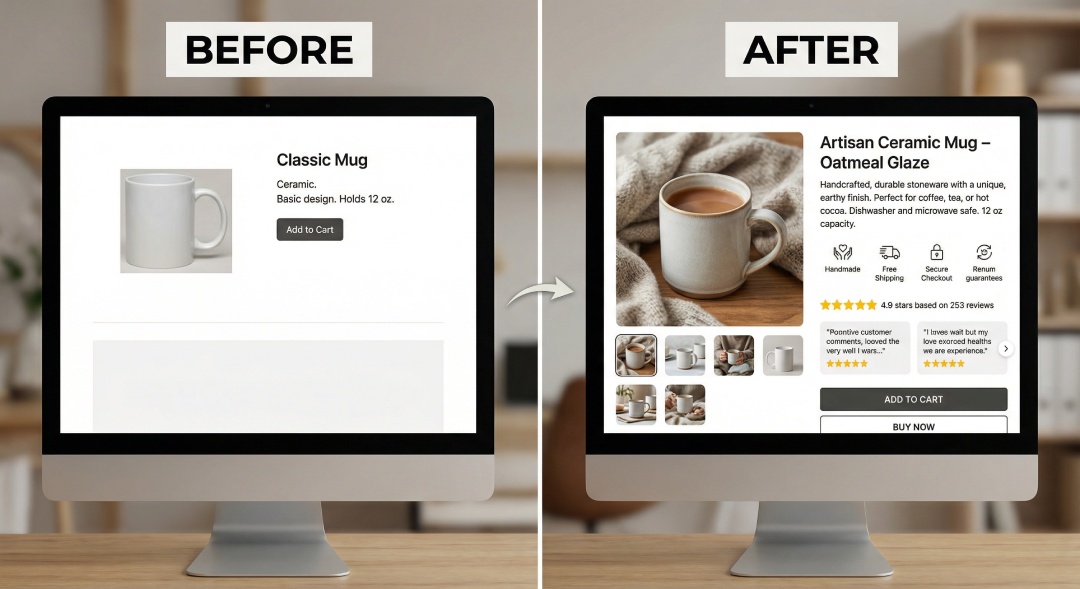
Your product pages are where purchases happen or don’t. Weak product pages with poor descriptions, inadequate images, and missing trust signals cost stores millions in lost sales every day. This is one of the easiest problems to fix but most damaging when ignored.
Product Page Mistakes That Kill Conversions
- Poor quality images: Blurry, low-resolution photos or only one product angle.
- Weak product descriptions: Generic copy that focuses on features instead of benefits.
- No social proof: Missing customer reviews, ratings, and testimonials.
- Lack of trust signals: No security badges, guarantees, or return policies visible.
- Unclear calls-to-action: Hard-to-find or confusing “Add to Cart” buttons.
- Missing product details: No size guides, material information, or specifications.
- No urgency or scarcity: Nothing encouraging immediate purchase
✅ How to Create High-Converting Product Pages
1. Upgrade Your Product Photography
- Use high-resolution images with multiple angles (at least 3-5 images per product).
- Include lifestyle photos showing products in use.
- Add zoom functionality so customers can see details.
- Ensure proper lighting and clean backgrounds.
- Show all color and size variations.
- Consider 360-degree views for premium products
2. Write Compelling Product Descriptions
- Focus on benefits and how the product solves problems, not just features.
- Use clear, concise language avoid jargon.
- Include key specifications in bullet points for easy scanning.
- Answer common questions within the description.
- Use storytelling to create emotional connections.
- Optimize for SEO with relevant keywords naturally incorporated
3. Add Social Proof and Trust Signals
- Display customer reviews and ratings prominently.
- Include user-generated content like customer photos.
- Show trust badges (secure payment icons, money-back guarantee).
- Add “As seen in” media mentions if applicable.
- Display number of reviews and average rating.
- Highlight bestsellers or “Most Popular” labels
4. Create Clear Calls-to-Action
- Make “Add to Cart” buttons large and prominent.
- Use action-oriented language and contrasting colors.
- Consider sticky “Add to Cart” buttons on mobile.
- A/B test button placement and wording
5. Add Urgency Elements
- Display stock levels (“Only 3 left in stock”).
- Use countdown timers for limited-time offers.
- Show recent purchases (“Sarah from New York just bought this”).
- Highlight products already in other shoppers’ carts
6. Include Comprehensive Product Information
- Add size charts and fitting guides.
- List materials and care instructions.
- Provide detailed specifications.
- Create an FAQ section addressing common concerns.
- Include shipping information and delivery times.
- Clearly state your return and exchange policy
4. Checkout Friction That Abandons Sales
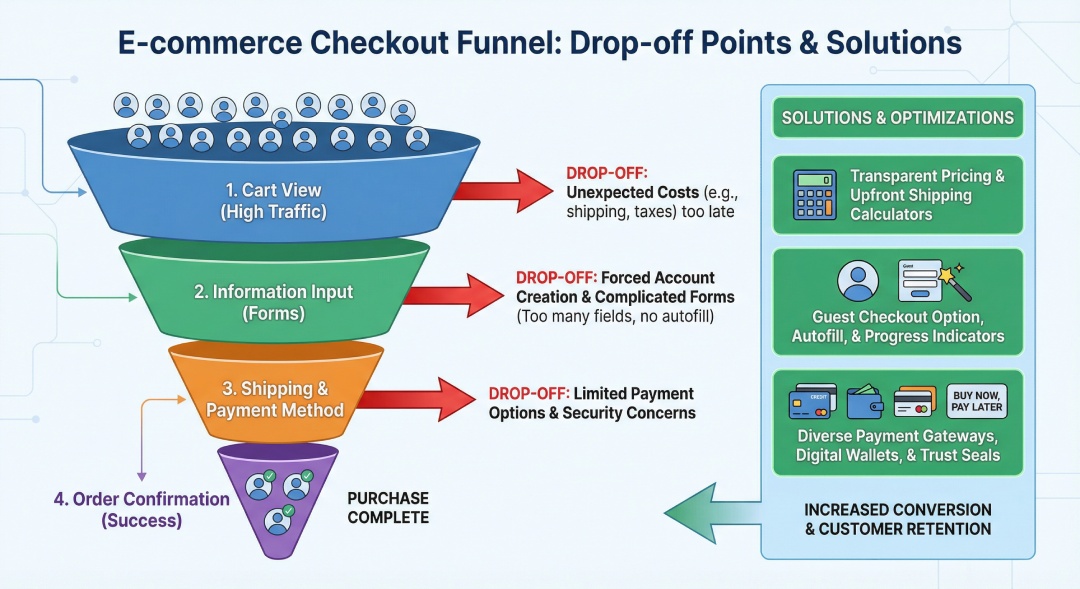
Cart abandonment rates average 70% across all industries, but much of this represents fixable Shopify problems. A friction-filled checkout process turns ready-to-buy customers into lost sales at the final moment. If you’re wondering “why is my Shopify store not selling,” checkout issues are often the primary culprit.
Shocking Statistics: 48% of cart abandonments happen because of unexpected costs like shipping, taxes, and fees. Another 63% of shoppers abandon their cart when they can’t check out as a guest. These are preventable losses.
Common Checkout Mistakes
- Hidden costs: Surprising customers with shipping fees and taxes at the last step.
- Forced account creation: Making customers create an account before purchasing.
- Too many form fields: Asking for unnecessary information.
- Limited payment options: Not offering popular payment methods.
- Complicated multi-step checkout: Too many pages before completion.
- No security indicators: Customers worried about payment safety.
- Unclear shipping times: Not communicating when items will arrive
✅ How to Optimize Your Shopify Checkout
1. Be Transparent About All Costs Upfront
- Display shipping costs early in the shopping journey.
- Add shipping calculators to product pages.
- Show estimated taxes before checkout.
- Consider offering free shipping or clearly communicate costs.
- Never surprise customers with hidden fees at the last moment
2. Enable Guest Checkout
- Allow customers to purchase without creating an account.
- Offer account creation as an optional step after purchase.
- Make the “Continue as Guest” button prominent and easy to find
3. Simplify Forms
- Only ask for essential information.
- Use autofill functionality.
- Provide clear field labels.
- Show real-time validation to catch errors immediately.
- Use appropriate input types (dropdowns for countries, date pickers, etc.)
4. Offer Multiple Payment Options
- Enable Shopify Payments for the smoothest experience.
- Add Shop Pay, Apple Pay, and Google Pay.
- Include PayPal and other popular payment methods.
- Support buy now, pay later options like Klarna or Afterpay.
- Ensure payment options work in all regions you serve
5. Use One-Page Checkout
- Shopify’s one-page checkout consolidates information, shipping, and payment.
- Reduces the number of steps and clicks required.
- Improves mobile checkout experience significantly.
- Shows progress indicators so customers know where they are
6. Add Security and Trust Elements
- Display security badges and SSL certificates prominently.
- Show accepted payment method logos.
- Include your return policy and money-back guarantee.
- Add customer support contact information
7. Communicate Shipping Clearly
- Show estimated delivery dates, not just “3-5 business days”.
- Provide tracking information immediately after purchase.
- Offer multiple shipping speed options.
- Set realistic expectations for delivery times
5. Missing or Inadequate SEO Optimization

Many new Shopify store owners think traffic will come to their store naturally after setup. This is one of the most damaging Shopify mistakes. Without proper SEO optimization, your store is invisible to potential customers searching on Google and other search engines.
SEO Mistakes Hurting Your Store
- Missing or poor meta descriptions: Not optimizing titles and descriptions for search engines.
- No image alt text: Missing opportunities for image search traffic.
- Generic product titles: Not including keywords customers actually search for.
- Duplicate content: Using manufacturer descriptions or copying from other sites.
- No sitemap submission: Google can’t find all your pages to index them.
- Slow site speed: Google considers speed as a ranking factor.
- Poor mobile optimization: Google uses mobile-first indexing.
✅ How to Fix Shopify SEO Issues
1. Optimize Meta Information
- Write unique, compelling meta titles (50-60 characters).
- Create descriptive meta descriptions (150-160 characters).
- Include target keywords naturally.
- Make each product page’s meta data unique.
- Use action-oriented language to improve click-through rates
2. Optimize Product Titles and Descriptions
- Research keywords using tools like Ubersuggest or Ahrefs.
- Include relevant keywords in product titles.
- Write unique, benefit-focused product descriptions.
- Avoid copying manufacturer descriptions.
- Use natural language write for humans first, search engines second
3. Add Alt Text to All Images
- Describe what’s in each image clearly and concisely.
- Include relevant keywords where appropriate.
- Improves accessibility for screen readers.
- Helps images appear in Google Image search
4. Submit Your Sitemap to Google
- Access Google Search Console.
- Submit your Shopify sitemap (yourstore.com/sitemap.xml).
- Monitor indexing status regularly.
- Fix any crawl errors that appear
5. Optimize URL Structure
- Use clean, descriptive URLs.
- Include keywords in URLs when possible.
- Keep URLs short and readable.
- Use hyphens to separate words, not underscores.
6. Improve Internal Linking
- Link related products together.
- Create collection pages with relevant products.
- Use descriptive anchor text for links.
- Build a logical site structure that’s easy to navigate.
7. Enable Rich Snippets
- Add structured data markup for products.
- Include price, availability, and review ratings.
- Rich snippets increase click-through rates in search results.
6. Poor Trust Signals and Credibility Issues

Trust is crucial in online shopping. Underestimating its importance is one of the most damaging Shopify conversion rate mistakes. Your website visitors need to be sure their personal information is safe and that your products are as good as they appear in your store.
Trust-Related Mistakes
- No customer reviews: Shoppers can’t verify product quality.
- Missing security badges: Customers worry about payment safety.
- Incomplete “About Us” page: No brand story or company information.
- No contact information: Difficult to reach for questions or support.
- Unprofessional design: Poor branding suggests a scam site.
- Grammar and spelling errors: Appears unprofessional and untrustworthy.
- No return policy: Customers fear they’re stuck with products
✅ How to Build Trust and Credibility
1. Display Customer Reviews Prominently
2. Add Security and Trust Badges
- Display SSL certificate and secure payment icons.
- Show payment method logos (Visa, Mastercard, PayPal, etc.).
- Add money-back guarantee seals.
- Include any industry certifications or awards.
- Place these badges near checkout buttons and on checkout pages
3. Create a Compelling About Us Page
- Tell your brand story authentically.
- Explain your mission and values.
- Include photos of your team or workspace.
- Share your company’s history and journey.
- Highlight what makes you different from competitors.
- Make it personal and relatable
4. Make Contact Information Easy to Find
- Add a dedicated “Contact Us” page.
- Include email, phone number, and physical address.
- Implement live chat for instant support.
- Show expected response times.
- Add a contact form as an alternative.
- Display business hours clearly
5. Create Clear Policies
- Write detailed shipping and delivery policies.
- Create a fair and clear return/refund policy.
- Add privacy policy and terms of service.
- Make policies easy to find (footer links).
- Use simple language customers can understand
6. Ensure Professional Presentation
- Use professional product photography.
- Maintain consistent branding throughout the site.
- Proofread all content for spelling and grammar errors.
- Choose a cohesive color scheme.
- Ensure all links work properly
7. Showcase Social Proof
- Display “As seen in” media mentions if you have them.
- Show social media follower counts.
- Include testimonials from satisfied customers.
- Highlight celebrity or influencer endorsements.
- Add case studies or success stories
7. Ignoring Analytics and Data
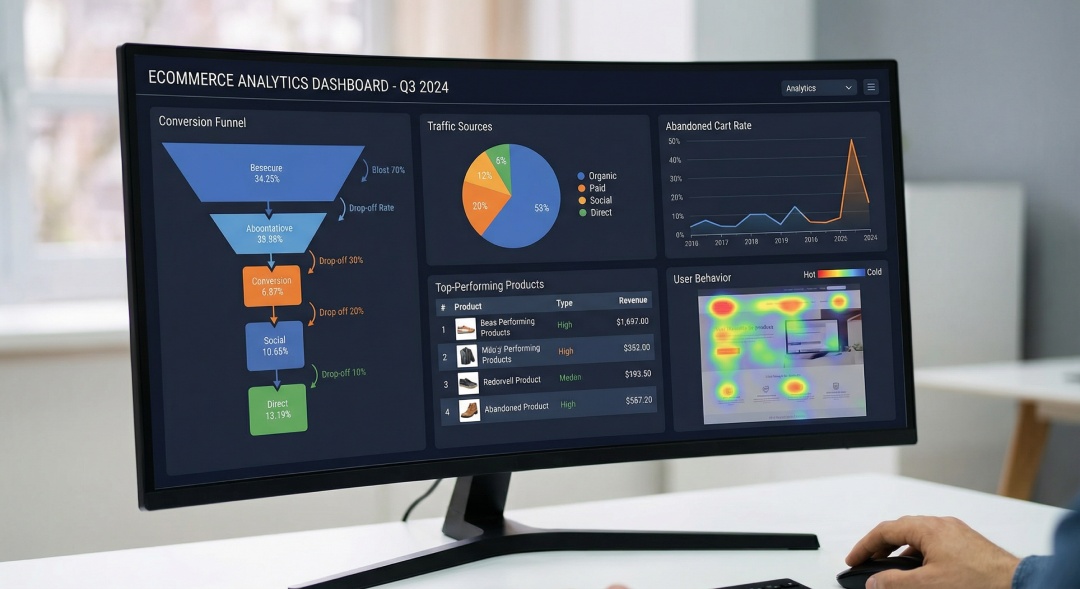
Many Shopify store owners make decisions based on guesswork rather than data. This is one of the most common Shopify mistakes that leads to wasted time and money. Without tracking and analyzing your store’s performance, you’re flying blind.
Analytics Mistakes
- No Google Analytics setup: Missing crucial traffic and behavior data.
- Not tracking conversions: Unable to measure what’s working.
- Ignoring cart abandonment data: Not recovering lost sales.
- No A/B testing: Making changes without testing effectiveness.
- Not monitoring metrics regularly: Missing trends and problems.
- Focusing on vanity metrics: Tracking views instead of conversions and revenue
✅ How to Use Analytics Effectively
1. Set Up Essential Tracking
- Install Google Analytics 4 on your Shopify store.
- Set up Google Search Console.
- Enable Shopify’s built-in analytics.
- Connect Facebook Pixel if you run ads.
- Ensure conversion tracking is properly configured
2. Monitor Key Metrics
- Conversion rate (target: 2-4% or higher).
- Average order value.
- Cart abandonment rate.
- Traffic sources and channels.
- Bounce rate and time on site.
- Best-selling products.
- Customer lifetime value
3. Implement A/B Testing
- Test different product page layouts.
- Try various CTA button colors and text.
- Experiment with pricing presentations.
- Test different product descriptions.
- Only change one element at a time.
- Use tools like Shoplift or Mida
4. Track Cart Abandonment
- Enable Shopify’s abandoned cart recovery.
- Set up automated email sequences for abandoned carts.
- Identify where in checkout process customers drop off.
- Analyze reasons for abandonment.
- Test recovery offers and incentives
5. Use Heat Maps and Session Recordings
- Install tools like Hotjar or Microsoft Clarity.
- See exactly how users interact with your pages.
- Identify confusing elements or dead ends.
- Watch session recordings to understand user behavior.
- Find and fix usability issues.
6. Review Data Regularly
- Check key metrics weekly.
- Do comprehensive monthly reviews.
- Look for trends and patterns.
- Identify underperforming products or pages.
- Make data-driven decisions about changes
8. Poor Email Marketing and Customer Retention
Acquiring new customers costs 5 to 25 times more than retaining existing ones, yet many Shopify store owners focus solely on new traffic. Ignoring email marketing and customer retention is leaving money on the table.
Email and Retention Mistakes
- No email collection: Not building an email list.
- Missing welcome series: No automated emails for new subscribers.
- No abandoned cart emails: Not following up with potential customers.
- Generic email content: Not personalizing messages.
- Irregular communication: Only emailing when you want to sell something.
- No loyalty program: Not rewarding repeat customers.
✅ How to Improve Email Marketing and Retention
1. Build Your Email List
- Add email signup forms to your site.
- Offer incentives (discounts, free shipping) for subscribing.
- Use exit-intent popups (but don’t overdo it).
- Collect emails at checkout.
- Make signup easy and non-intrusive.
2. Set Up Essential Email Automations
- Welcome series for new subscribers.
- Abandoned cart recovery emails (send 3 emails over 3 days).
- Post-purchase thank you and review request.
- Win-back campaigns for inactive customers.
- Re-order reminders for consumable products
3. Personalize Your Emails
- Use customer names in subject lines and greetings.
- Recommend products based on browsing and purchase history.
- Segment your list by behavior and preferences.
- Send birthday or anniversary offers.
- Tailor content to customer interests
4. Provide Value Beyond Sales
- Share helpful tips and how-to content.
- Offer exclusive early access to new products.
- Provide styling or usage suggestions.
- Share customer stories and testimonials.
- Build relationships, not just transactions
5. Create a Loyalty Program
- Reward repeat purchases with points.
- Offer VIP tiers for top customers.
- Provide exclusive perks and early access.
- Make redemption easy and rewarding.
- Use apps like Smile.io or LoyaltyLion
🎯 Key Takeaways: Common Shopify Mistakes Summary
The most common Shopify mistakes that kill sales are:
- Slow page speed – Optimize images, reduce apps, choose lightweight themes.
- Poor mobile experience – Make buttons larger, simplify navigation, use mobile-first themes.
- Weak product pages – Improve photos, write better descriptions, add social proof.
- Checkout friction – Be transparent about costs, enable guest checkout, simplify forms.
- Missing SEO – Optimize meta data, add alt text, submit sitemap.
- Lack of trust signals – Display reviews, security badges, clear policies.
- Ignoring analytics – Track key metrics, run A/B tests, make data-driven decisions.
- Poor email marketing – Build your list, automate campaigns, personalize content.
The good news? All of these Shopify problems and solutions are within your control. You don’t need a huge budget or technical expertise to fix most of these issues just knowledge and commitment to improvement.
Taking Action: Your Next Steps
Now that you understand the most common Shopify mistakes and how to fix them, it’s time to take action. Here’s your step-by-step plan:
- Test your site speed using Google PageSpeed Insights.
- Check mobile experience on your actual phone.
- Review your checkout process as if you were a customer.
- Verify Google Analytics and Search Console are set up.
- Check that your sitemap is submitted to Google
- Optimize all product images.
- Remove unused apps.
- Add alt text to all images.
- Set up abandoned cart email automation.
- Add security badges and trust signals.
- Review and improve your top 5 product pages.
- Rewrite product descriptions for your best sellers.
- Implement or improve customer review system.
- Create welcome email series.
- Audit all meta titles and descriptions.
- Set up conversion tracking properly.
- Start A/B testing key elements
⚠️ Important Reminder: Don’t try to fix everything at once. Start with the biggest issues first, usually page speed and mobile optimization have the most immediate impact. Make changes systematically, measure results, and then move to the next optimization.
Measuring Your Success
As you implement these fixes, track these key performance indicators:
- Conversion Rate: Should increase as you fix issues.
- Average Order Value: Better product pages often lead to larger orders.
- Bounce Rate: Should decrease with faster load times.
- Cart Abandonment Rate: Should drop with checkout improvements.
- Organic Traffic: Will grow as SEO improves.
- Page Load Speed: Monitor Core Web Vitals improvements.
- Mobile Conversion Rate: Should increase with mobile optimizations.
- Email List Growth: Track subscriber increases.
- Customer Lifetime Value: Should rise with better retention.
Remember, even small improvements compound over time. A store converting at 1.5% that reaches 2% has increased revenue by 33% without any additional marketing spend. Keep optimizing, keep testing, and keep measuring your results.
Ready to Transform Your Shopify Store?
Don’t let these common Shopify mistakes continue costing you sales. Start implementing these fixes today and watch your conversion rates climb.
Remember: your competitors are likely making these same mistakes. By fixing them, you gain a significant competitive advantage.
The question isn’t whether you can afford to fix these issues it’s whether you can afford not to.
Frequently Asked Questions
1. What is a good conversion rate for a Shopify store?
2. How long does it take to see results after fixing these mistakes?
3. Do I need to hire a developer to fix these issues?
4. Which mistake should I fix first?
5. How often should I test and optimize my Shopify store?
Confused how to fix all the issues? Get expert help from ShopifyGems – Contact Us